
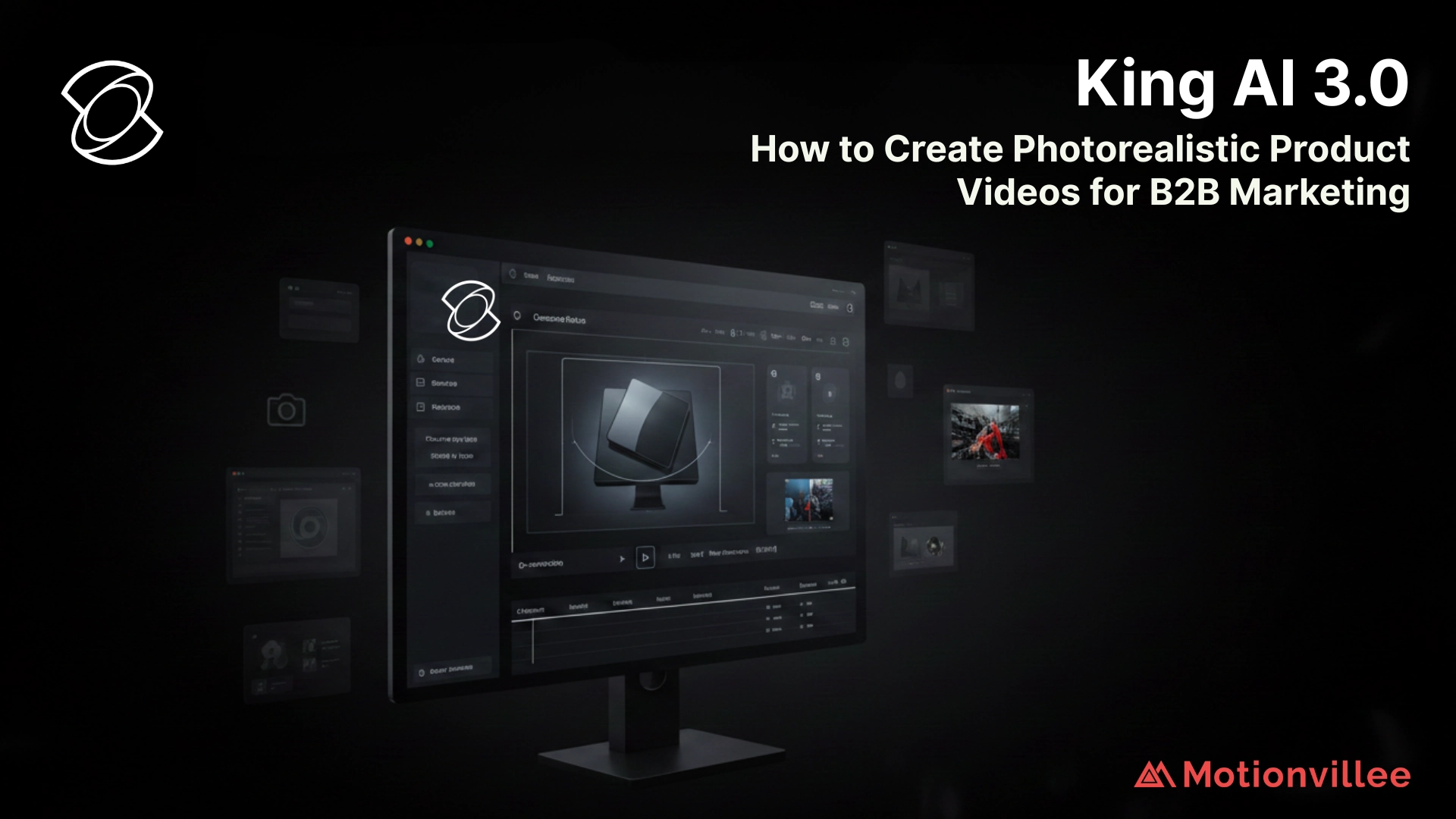
Kling AI 3.0 Tutorial: How to Create Photorealistic Product Videos for B2B Marketing
AI video tools have reached a point where they’re no longer just “good enough.”
They’re starting to look real.
And that changes everything for B2B marketing.
Because if you can create product videos that look like they were shot in a studio without actually shooting anything you remove one of the biggest bottlenecks in content production.
That’s exactly where Kling AI 3.0 comes in.
Unlike earlier tools that struggled with motion, realism, or consistency, Kling 3.0 focuses on one thing:
Making AI-generated video behave like the real world.
Let’s break down how it works and more importantly how B2B teams can actually use it.
What Makes Kling AI 3.0 Different
Most AI video tools generate clips.
Kling 3.0 generates scenes.
That’s a big difference.
It uses a physics-aware system that simulates:
- Gravity
- Motion
- Object interaction
- Camera movement
This is why its output feels more natural.
Instead of floating objects or unnatural transitions, you get motion that behaves like real footage. (Kling 3.0 AI Video Generator)
It also combines:
- Text-to-video
- Image-to-video
- Video editing
Into one system, rather than separate tools. (Kling 3.0 AI Video Generator)
So instead of jumping between platforms, everything happens in one workflow.
Watch How Kling 3.0 Actually Works
Here’s a practical walkthrough so you can see the output quality and workflow:
Kling 3.0 AI Video Tutorial (Full Walkthrough)
This gives you a real sense of how prompts translate into visuals—and where the strengths and limitations are.
Why This Matters for Product Videos
Let’s get practical.
B2B product videos usually require:
- Studio setups
- Lighting
- Camera equipment
- Post-production
That’s expensive and slow.
Kling 3.0 changes that by allowing you to:
- Generate product visuals from prompts
- Animate static product images
- Create multi-shot sequences automatically
Its “smart storyboard” system can even generate multi-shot scenes in one go, making the video feel structured instead of random. (Kling AI – Next-Gen AI Video Generator)
This is especially useful for:
- SaaS product demos
- Hardware visualization
- Concept-based products
Step-by-Step: Creating a Product Video Using Kling AI 3.0
Let’s break this down into a simple workflow.
Step 1: Start With a Clear Prompt
Everything starts with your prompt.
Instead of writing something vague like:
“product demo video”
You need to be specific.
For example:
“A sleek fintech mobile app interface, dark mode, glowing UI, user scrolling smoothly, cinematic lighting, close-up shot”
The more detail you give, the better the output.
This is where principles from [Process of creating animated explainer video] still apply clarity in input defines quality of output.
Step 2: Use Image-to-Video for Product Accuracy
If you have a product image, use it.
Kling can animate static images into realistic motion.
This is critical for:
- Maintaining brand accuracy
- Keeping product details consistent
- Avoiding hallucinated visuals
It also improves realism significantly compared to pure text prompts.
Step 3: Control Camera Movement
One of Kling’s biggest strengths is camera control.
You can define:
- Pan
- Zoom
- Tracking shots
- Focus shifts
This gives you “director-level” control over the output. (Kling 3.0 AI Video Generator)
For product videos, this is huge.
Because camera movement is what makes something feel premium.
Step 4: Generate Multi-Shot Sequences
Instead of creating one clip at a time, Kling can generate multiple shots in a single sequence.
This creates:
- Wide shot
- Close-up
- Detail shot
All in one flow.
Which makes your video feel like a real production, not stitched clips.
Step 5: Add Native Audio
Kling 3.0 can generate audio along with video:
- Voiceovers
- Sound effects
- Ambient audio
All synced automatically.
That removes another production layer entirely.
And for B2B teams, that means faster turnaround.
Step 6: Use Draft Mode for Iteration
One of the most underrated features is draft mode.
You can test:
- Prompts
- Motion
- Angles
Before generating the final version.
This is important because AI video still requires iteration.
And that aligns with ideas from [How to boost conversions with animated explainer videos], where testing improves output quality.
Best Use Cases for B2B Marketing
Kling 3.0 is not for everything.
But where it works, it’s extremely powerful.
1. Product Visualization
Show products in environments that don’t exist yet.
2. SaaS UI Demonstrations
Animate dashboards and workflows without screen recordings.
3. Ad Creatives
Create multiple variations of the same concept quickly.
4. Concept Videos
Visualize ideas before investing in full production.
Where Kling 3.0 Still Falls Short
Let’s keep this real.
It’s powerful, but not perfect.
- Output duration is still limited (short clips)
- Requires strong prompting skills
- Not ideal for precise brand control
- Some outputs still need refinement
Also, while realism is improving, consistency across longer videos is still evolving
Kling vs Traditional Video Production
Here’s the real comparison.
Traditional production gives you:
- Full control
- High precision
- Strong brand alignment
Kling gives you:
- Speed
- Scalability
- Creative flexibility
The smart approach is not choosing one over the other.
It’s combining both.
Use Kling for:
- Ideation
- Prototyping
- Scalable content
And production for:
- Final brand videos
How B2B Teams Should Actually Use It
The best teams don’t replace production.
They optimize it.
A practical workflow looks like this:
- Generate concepts using Kling
- Test multiple variations
- Select best-performing ideas
- Refine or upscale for production
And when combined with strategies like [How to promote your animated explainer video?], it ensures your videos don’t just look good they perform.
Final Thought
Kling AI 3.0 is not just another AI video tool.
It’s a shift in how video content gets created.
Instead of starting with production, you start with ideas and validate them instantly.
For B2B marketing teams, that’s a massive advantage.
Because the real cost isn’t creating videos.
It’s creating the wrong ones.
And tools like Kling help you avoid that before you invest time, money, and effort into production.